
Editor’s note: This article is Part 1 of a three-part introduction to Python in Excel. It’s an important feature in Excel allowing you to use more advanced data analytics, complex visualisations, machine learning, and automation. The series details Python’s functionality and application for data analysis — a highly relevant skill in today’s accounting and finance worlds. Part 2 looks at working with lists, extending this with Dynamic Arrays, and how Python works with Excel data sources such as an Excel Table and a Power Query Table. Part 3 looks at errors and more complex examples using imported libraries and modules.
This first article in the series is split into two sections:
- Introduction: This section notes advantages and drawbacks to Python and how it was only a matter of time before there was a true alliance with Excel. This segment provides some history and explains how you may access Python in Excel.
- Entering Python in Excel: This part details how Python code may be inserted into Excel, providing several illustrative examples.
Let’s go.
Introduction
Integrating Python with Excel offers a powerful combination for advanced financial modelling in particular. One example could be a financial forecast model that uses Python to perform advanced scenario analysis, incorporating machine-learning algorithms to predict future trends based on historical data, and ultimately provide deeper insights and more accurate predictions.
Advantages of Python in Excel include:
- Advanced analytics: Python provides robust libraries for statistical analysis and machine learning.
- Automation: Python scripts can automate complex and repetitive tasks, although don’t forget Get & Transform/Power Query.
- Data integration: Python easily integrates with various data sources for comprehensive analysis.
There are drawbacks, though, which should be considered:
- Technical expertise: Python in Excel requires knowledge of Python programming, although Copilot may reduce this requirement considerably in the near future.
- Complexity: Python may simply be overkill for simple models.
Its advantages mean Python can no longer be ignored by Excel devotees.
It’s no secret that the integration of Python into Excel has been one of the most requested enhancements to Excel since 2015. Transforming and modelling data using analytical techniques to extract the information needed for correct business decisions is viewed as a key activity — hence the success of Power Query and Power BI, for example.
Whilst there have been third-party add-ins that enabled users to install Python to work with Excel data, bringing Python into Excel means that many of the tools needed to run complex data analysis on large datasets are already embedded and ready to use. This has been achieved via a collaboration between Microsoft and Anaconda, a company founded in 2012 with the goal of bringing Python into data analytics.
Python in Excel allows Python code to be entered directly in the Excel environment and provides some preloaded Python libraries (collections of precompiled code), selected for the data analysis code they provide. It should be noted that Python calculations are performed in the Microsoft Cloud; this does put some companies off due to privacy concerns. However, the same was previously levelled at Power BI — and companies found ingenious ways to circumvent this issue.
Python in Excel is now Generally Available for Windows users of Microsoft 365 Business and Enterprise. It is also in Preview for Family and Personal licence users. You may now create, edit, and recalculate Python formulae in any workbook on your browser, or in Excel for Windows.
If workbooks containing Python are shared with users who do not have access to Python in Excel, the data may be viewed, but an error will be shown if recalculation of the Python data is attempted.
Entering Python in Excel
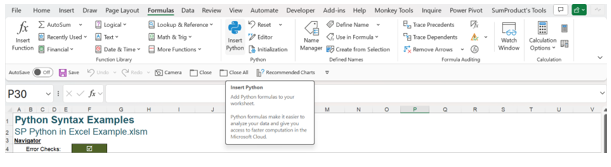
For those users who have Python in Excel, Python code may be inserted in several ways. The first method is from the Ribbon: On the Formulas tab, there is a new section called Python, which includes the option to Insert Python:
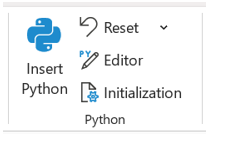
There are other options in this section:
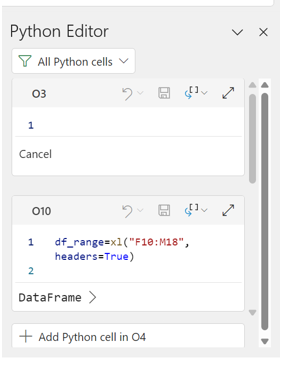
The Editor opens the Python Editor, which is a pane dedicated to writing Python code:
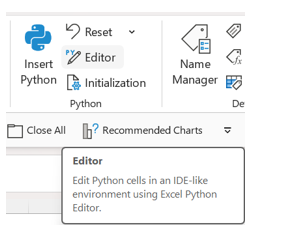
As the screen tip suggests, this allows users to edit Python cells (and create new ones) in an “IDE [integrated development environment]-like environment”. Pressing this button opens a pane on the right-hand side of the screen. The following screenshot shows some existing Python code.
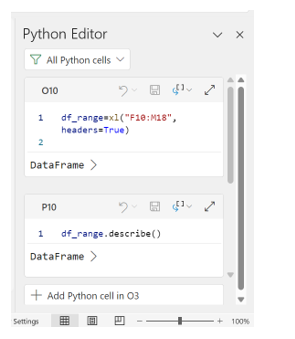
The existing Python cells are listed along with the formulae. Note that the Python cells will be shown in execution order, and there is also an option to “Add Python cell in Xn” where Xn is the currently selected cell.
Clicking on this option opens up a section for this cell, and the “Add Python to cell in …” moves on to the next cell selected in the grid.
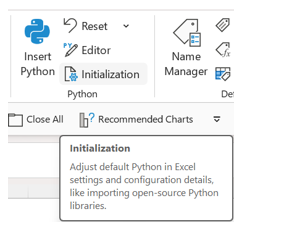
The information displayed when the user hovers over the Initialization button is currently misleading:
Whilst the settings are shown in an Initialization pane; they are currently read-only:
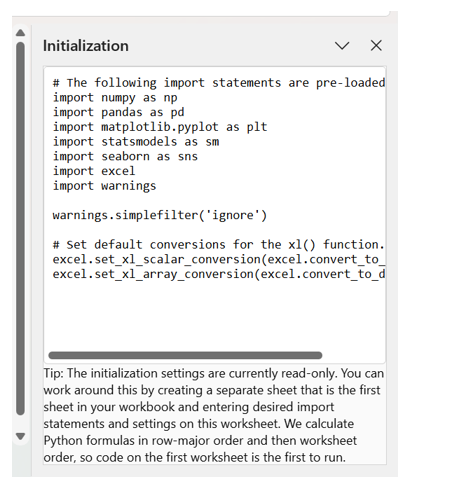
Note the hint at the bottom: Python formula cells are not calculated in the same way as Excel formula cells. Python calculates from left to right, from top to bottom, and from the first worksheet to the last. This is referred to as row-major order, and it will affect dependencies. The pre-loaded Python libraries are also shown on this pane. Importing a library will be covered in Part 3 of the article series, but for now note the libraries and the alias defined by the “as” statement.
An alternative to using the Insert Python button is to enter the following code in an Excel cell:
=PY
The IntelliSense then allows PY to be chosen using TAB (or by double-clicking on the selection):
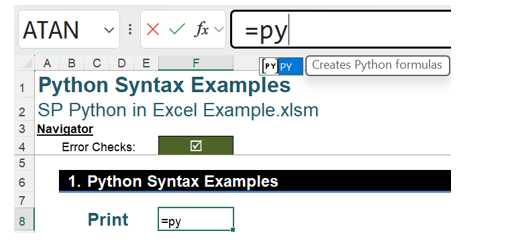
Once the PY function has been selected, a Python prompt appears:
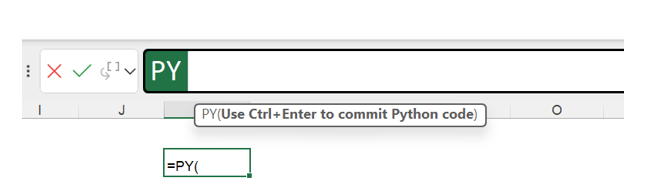
As the screenshot shows, we should use CTRL+ENTER to commit the code. When entering a Python formula, pressing ENTER does not run the code; instead, it takes the user to the next line of Python code. In order to submit a Python formula, CTRL+ENTER or the green tick should be used.
When users first learn Python on other platforms (also known as “frontends”), the first example is often to display “Hello World” using the Python command print(). It’s the programming equivalent of learning “Smoke on the Water” on the triangle. However, this is an example of how the Excel Python platform differs, as the print() command is not needed to get a value to appear in a cell. If print() is used, the result is shown in the following screenshot:
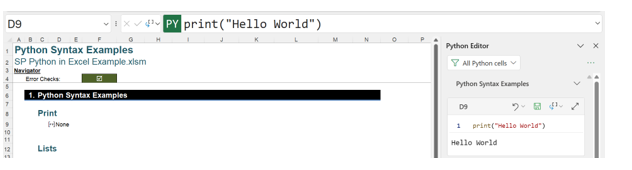
The Python code used is:
print(“Hello World”)
To view the Excel data, the dropdown menu to the left of the Python Formula bar may be used:
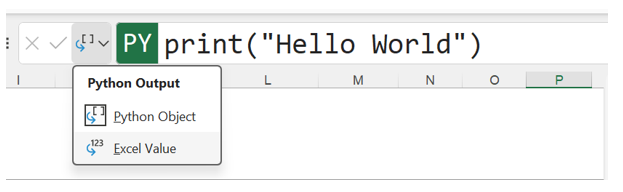
This would then spill any data in the cell. For Twister contestants and keyboard enthusiasts, CTRL+ALT+SHIFT+M will toggle between these outputs.
In the “Hello World” example, viewing the cell as the Excel Value option instead of what is known as the DataFrame, the word “None” appears. “Hello World” appears in the Python Editor.
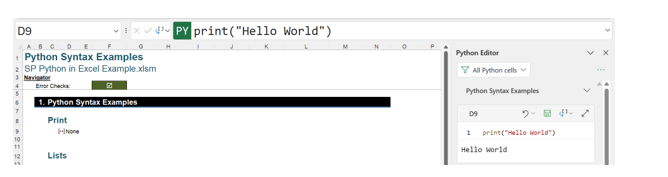
This is standard output in the pane and does not indicate an error. Note that the Python Editor opened automatically to show the entry, which is the default behaviour. The word “None” appears because that is the equivalent of null in Python.
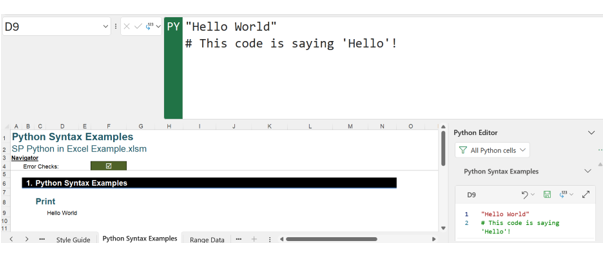
To have the words “Hello World” appear in the cell, the print() command must be omitted:

The Python code is therefore:
“Hello World”
As the Python code entered becomes more complex, it will be helpful to enter comments to show the purpose of the code. Comments are indicated by a hash sign (#).
Not all Python commands will be accepted in the Python in Excel frontend, for example the input() command, which may be used to prompt the user to enter a response in other frontends, is not accepted here:
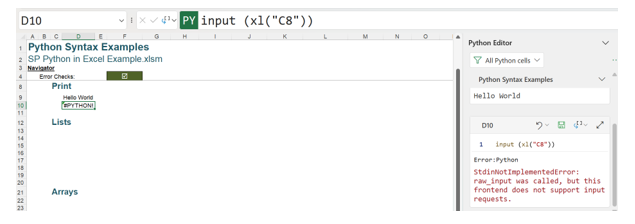
input (xl(“C8”))
In this case, an error message appears in red in the Python Editor (see the screenshot above):
StdinNotImplementedError: raw_input was called, but this frontend does not support input requests.
The inability to accept user inputs is a limitation of Python in Excel, rather than a true Python error, although the new Excel error #PYTHON! appears. This is one of a number of new error codes introduced to help describe issues with Python in Excel.
Having excluded the use of the print() and input() commands, much of the Python code used on other platforms works on the Excel frontend.
— Liam Bastick, FCMA, CGMA, FCA, is director of SumProduct, a global consultancy specialising in Excel training. He is also an Excel MVP (as appointed by Microsoft) and co-author of Python in Excel: Unlocking Powerful Data Analysis and Automation Solutions. Send ideas for future Excel-related articles to him at liam.bastick@sumproduct.com. To comment on this article or to suggest an idea for another article, contact Oliver Rowe at Oliver.Rowe@aicpa-cima.com.