
The topic of this article highlights the future of Excel — quite literally. It is true that the term “inconsistent Unicode surrogates” may neither roll off the tongue nor set the accounting world alight. However, the identified inconsistency has made Microsoft realise there are potential compatibility issues going forward in Excel that must be addressed. Let me explain.
Microsoft has recently updated the LEN, MID, SEARCH, FIND, and REPLACE functions to support what are known as “Unicode surrogates” in Excel. The updates are presently only available in the Insiders version for Windows, which usually indicates these functions will roll out en masse shortly. They are to address a cause of inconsistency in Excel for both international users and those who use emojis.
These five “legacy” functions have been double-counting certain characters since inception. This was inconsistent with the “more modern” text functions, which did not have this issue (including LEFT, RIGHT, TEXTBEFORE, TEXTAFTER, and TEXTSPLIT).
For example, you can see the existing behaviour where LEN(🤔) = 2. That’s a bit confusing!

With this update, the LEN, MID, SEARCH, FIND, and REPLACE functions now count each character once, no matter what that character is.
Many of you might be thinking, who cares? You are probably thinking you will never use emojis or kanji characters at work and this update will not make a difference to your world.
The problem is, it will.
Microsoft is about to change the results certain formulae will give in Excel. This is going to cause a dangerous precedent. For example, how would you feel if I were to change Excel’s calculation engine to produce the following behaviour?
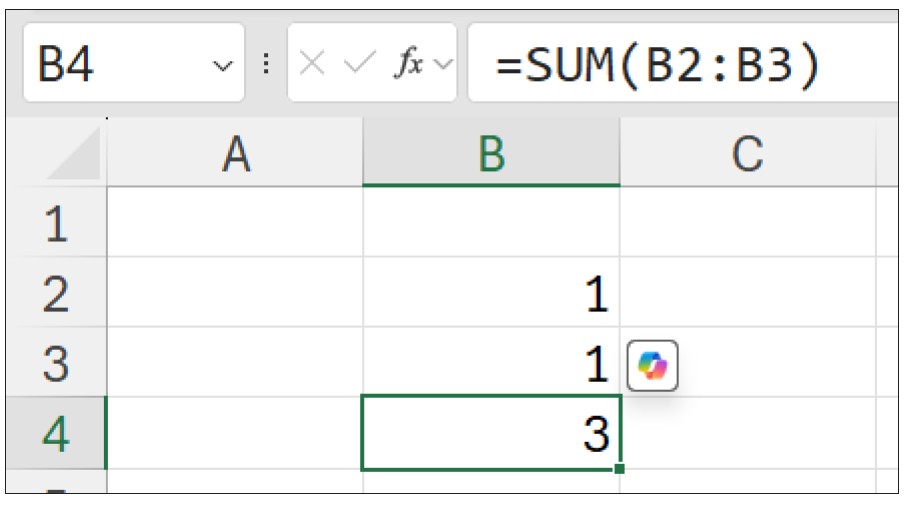
That would be a bit scary. If you think about it, that’s what Microsoft is doing with the LEN, MID, SEARCH, FIND, and REPLACE functions.
It could be argued certain functions could do with a revamp. One of the more common examples is probably prevalent in MATCH:
MATCH(lookup_value, lookup_vector, [match_type])
returns the relative position of an item in an array that (approximately) matches a specified value. It is not case sensitive. The third argument, match_type, does not have to be entered, but for almost all eventualities, you would most likely wish to change it. It allows one of three values:
- match_type 1 [default if omitted]: Finds the largest value less than or equal to the lookup_value — but the lookup_vector must be in strict ascending order, limiting flexibility.
- match_type 0: Probably the most useful setting, MATCH will find the position of the first value that matches lookup_value exactly. The lookup_vector can have data in any order and even allows duplicates.
- match_type -1: Finds the smallest value greater than or equal to the lookup_value — but the lookup_vector must be in strict descending order, again limiting flexibility.
When using MATCH, if there is no (approximate) match, #N/A is returned (this may also occur if data is not correctly sorted depending upon match_type).
MATCH is fairly straightforward to use:
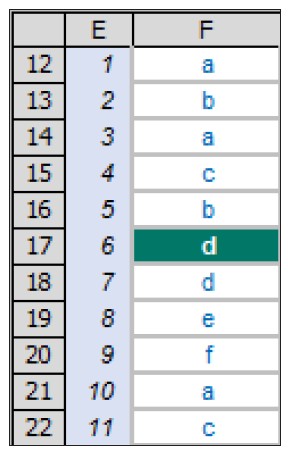
In the screenshot above,
MATCH(“d”,F12:F22,0)
gives a value of 6, being the relative position of the first “d” in the range. Note that having match_type 0 here is important. The data contains duplicates and is not sorted alphanumerically. Consequently, using match_type 1 and -1 would give the wrong answer: 7 and #N/A, respectively.
Microsoft recognised this issue, but in the past, realised it could not change the default value, as users were already using the function regularly. If Microsoft were to change the default value for the final argument, results could change potentially — and at the time, that was unpalatable to the software giant. Instead, it invented the superior function XMATCH — but that’s a story for another day.
The fact is that with the advent of these changes to these text functions, Microsoft has now clearly changed its collective mind. It believes it can create a mechanism in Excel where older functions may be modified, providing potentially different results without wreaking havoc on existing spreadsheets.
And so to the crux of this article: To ensure that calculations in your existing workbooks will not change when you do not wish them to, any such improvements are to be rolled out in what are known as Compatibility Versions.
These will be set per workbook. Initially, the available versions will be:
- Version 1 will reflect historical calculation behaviour.
- Version 2 will contain the improvements Microsoft wishes to propagate, which may affect existing formulaic results.
The modifications to LEN, MID, SEARCH, FIND, and REPLACE will be implemented in Compatibility Version 2.
So how do you navigate between Compatibility Versions? To change a workbook’s Compatibility Version, select Formulas -> Calculation Options -> Compatibility Version:
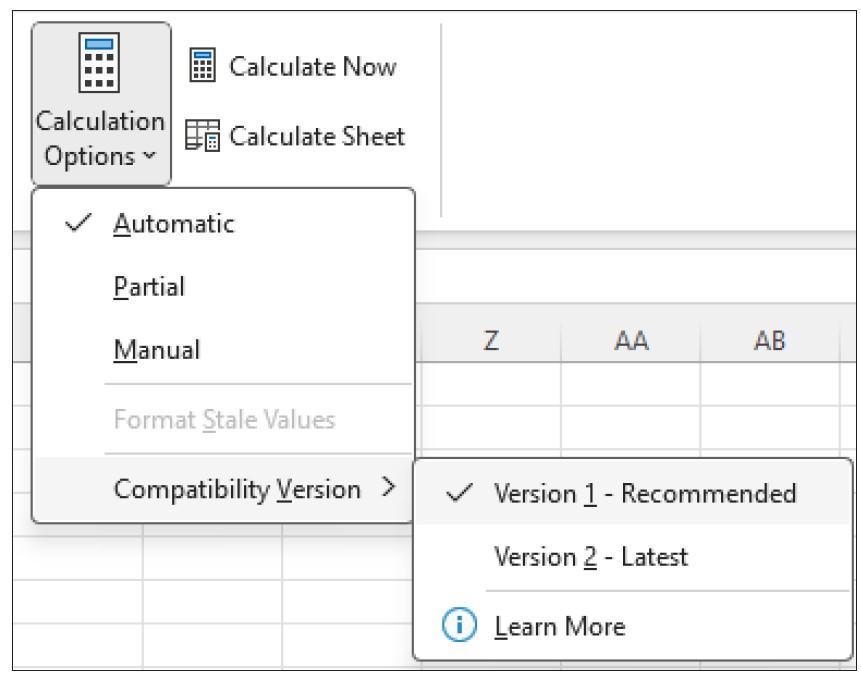
Existing spreadsheets will be set to Version 1, so their calculations will remain consistent. Furthermore, once a spreadsheet’s version has been set, it will not change unless you change it through the menu described above.
At the time of this writing, all new workbooks will be set to Version 1, but this will change to Version 2 after a transition period while it rolls out to all Microsoft 365 subscription users (January 2026 for those who use what is known as Excel’s Current Channel). Versions are cumulative, so they will include all changes from prior versions. For example, a future Version 3 will include the text function changes introduced by Version 2.
The version that is being set on new workbooks at any given time is called the Recommended Version. It should be considered the best option for most users and scenarios because it will have the most improvements, yet be accessible by all Microsoft 365 subscription users.
If you collaborate with colleagues or clients who are using non-Microsoft 365 Excel versions that predate this functionality (Excel 2024 and earlier), you can set the compatibility level to Version 1 to ensure consistency. Workbooks set to Version 1 will continue to calculate as they always have.
If a user opens a spreadsheet set to a version they do not have access to that contains functions that have changed, a warning will be shown indicating that calculation results may differ. Otherwise, the file will behave normally.
This is the current state of play:
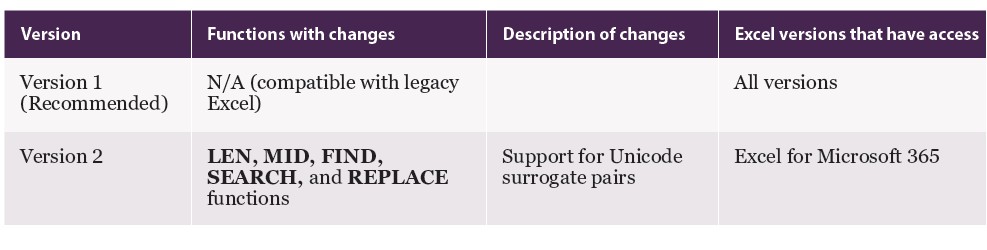
Be warned: This will not be the last of the changes. Whilst I have no insider information, I am sympathetic to the notion that you might think Microsoft is testing end users’ reception to multiple Compatibility Versions — albeit in a very low-key way.
Compatibility Versions are coming to Excel and will affect outputs. Be careful.
Liam Bastick, FCMA, CGMA, FCA, is director of SumProduct, a global consultancy specialising in Excel training. He is also an Excel MVP (as appointed by Microsoft) and author of Introduction to Financial Modelling and Continuing Financial Modelling. Send ideas for future Excel-related articles to him at liam.bastick@sumproduct.com. To comment on this article or to suggest an idea for another article, contact Oliver Rowe at Oliver.Rowe@aicpa-cima.com.
LEARNING RESOURCES
Controller Series: Technology — Must Have Excel Competencies
This course covers what the accountants of today should know about Excel to improve their efficiency, access data, and gain insights into the company, industry, and economy.
COURSE
Microsoft Power BI — Prepare Your Data Efficiently for Excel Analysis
This is the second course in the Microsoft Power BI series of courses. It focuses on getting data from different sources into Excel.
COURSE
MEMBER RESOURCES
Articles
“Using Excel’s Recommended Charts Feature”, FM magazine, 9 May 2025
“Excel Modelling: How to Implement 3 Types of Checks”, FM magazine, 25 March 2025
“Working With Images in Excel”, FM magazine, 19 December 2024